Viewing Transaction Logs
The Miscellaneous tab enables users to view the history of changes made to the guests’ or stay records.
Perform the following steps to view the transaction logs:
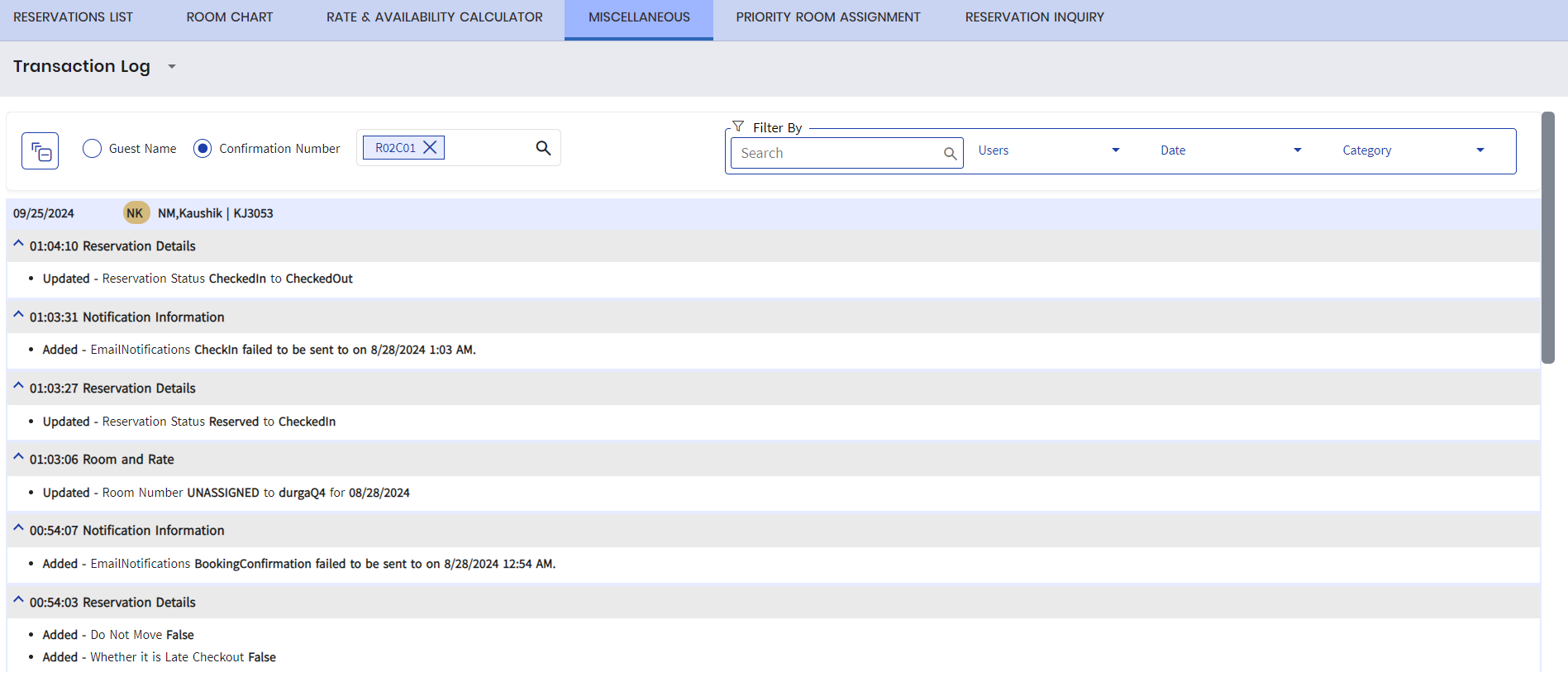
Navigate to Reservations ➜ Miscellaneous ➜ Transaction Log.
Select Guest or Confirmation Number. Once selected, users can then either search by guest name or confirmation using the Search field.
Users can also filter the log information displayed in the Transaction Log screen using the following options:
-
A search bar that allows users to search for specific log entries.
-
Users - A drop-down list consisting of all the users who created and modified the reservation. Multiple or all users can be selected from the drop-down list.
-
Date - A drop-down list consisting of all the dates on which the information was logged. Multiple or all dates can be selected from the drop-down list.
-
Category - A drop-down list consisting of all categories under which the information was logged. Multiple or all categories can be selected from the drop-down list. The available categories include:
-
Guest Information
-
Reservation Details
-
Room and Rate
-
Stay Information
-
Notification Information
-
Special Request
-
Payment Information
-
Alerts
-
Any information logged for the reservation will be displayed under its respective categories. Users can also collapse and hide the log information and view only the categories by clicking on the collapse icon.